MT5 / 023
KDJ alerts
Overview
KDJ alerts · MT5
Platform: MetaTrader 5 · Separate window
- Calculation period: the number of bars used by the indicator.
- Arrow display: size, distance or visibility of signal markers.
- Notification switch: controls alerts, popups or email. Email requires terminal configuration.
- Alert bar: 0 is the current bar; 1 is the previous closed bar.
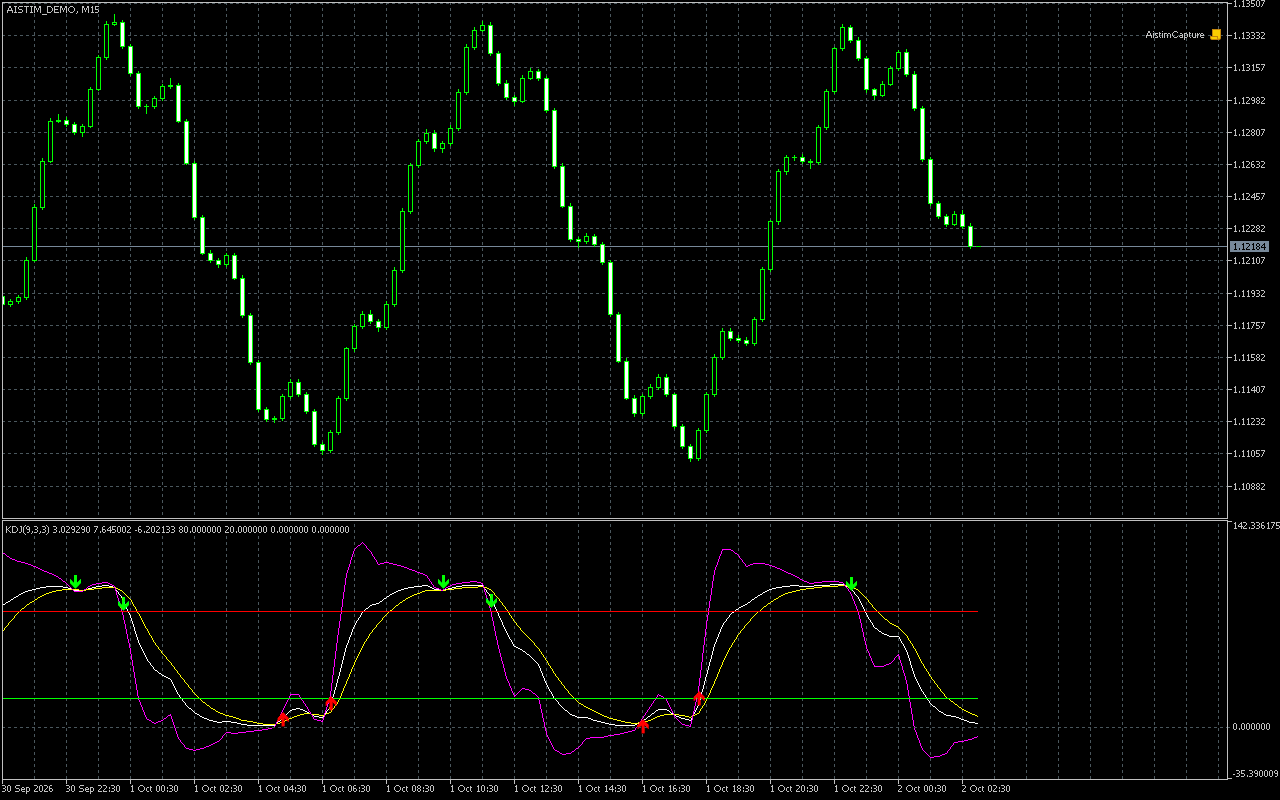
1. Indicator in use
2. Parameter settings
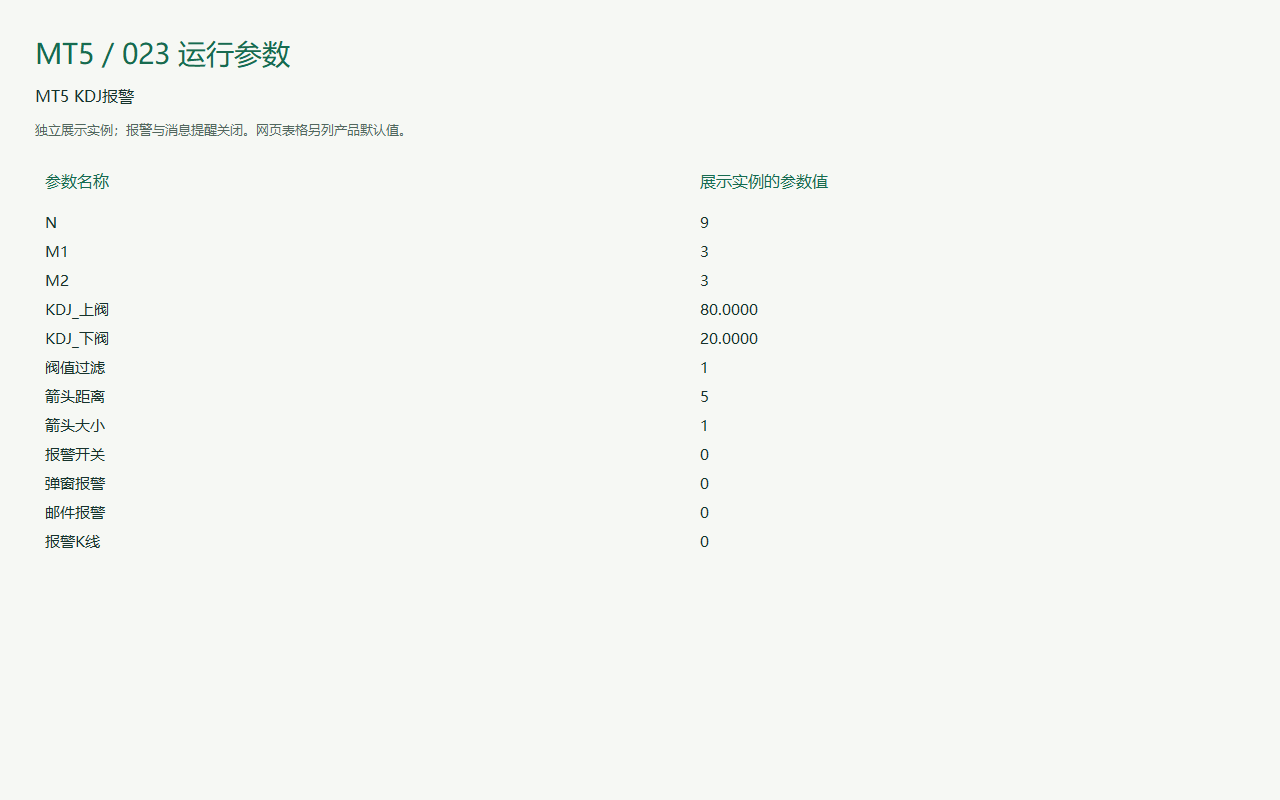
| Parameter | Default | How to use |
|---|---|---|
| N | Default9 | How to useCalculation period: the number of bars used by the indicator. |
| M1 | Default3 | How to useCalculation period: the number of bars used by the indicator. |
| M2 | Default3 | How to useCalculation period: the number of bars used by the indicator. |
| Parameter · Calculation period | Default80 | How to useCalculation period: the number of bars used by the indicator. |
| Parameter · Calculation period | Default20 | How to useCalculation period: the number of bars used by the indicator. |
| Parameter · Calculation period | DefaultEnabled | How to useCalculation period: the number of bars used by the indicator. |
| Arrow distance | Default5 | How to useArrow display: size, distance or visibility of signal markers. |
| Arrow size | Default1 | How to useArrow display: size, distance or visibility of signal markers. |
| Alert switch | DefaultEnabled | How to useNotification switch: controls alerts, popups or email. Email requires terminal configuration. |
| Parameter · Notification switch | DefaultEnabled | How to useNotification switch: controls alerts, popups or email. Email requires terminal configuration. |
| Email alert | DefaultEnabled | How to useNotification switch: controls alerts, popups or email. Email requires terminal configuration. |
| Alert bar | Default0 | How to useAlert bar: 0 is the current bar; 1 is the previous closed bar. |
Installation and use
Place the indicator file in the terminal’s MQL4 / MQL5 → Indicators folder, refresh Navigator, then drag it onto a chart.
MT5 · Indicators
Ask for pricing
Indicator file delivery with installation and usage guidance.
Ask about this productTelegram
@alonginchinaPhone
+86 130 5817 0665